Vedu APK for Firestick — Install Guide (Fire TV Stick)
Short Answer
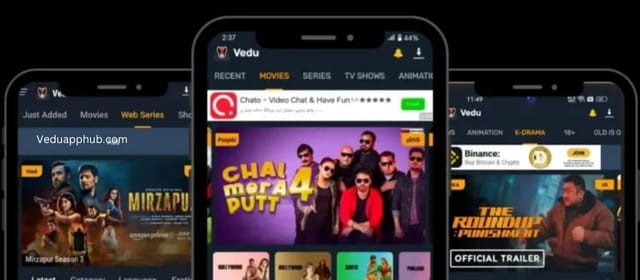
Yes, Vedu APK runs on a Fire TV Stick, but not through the Amazon Appstore — the app is not listed there and there is no TV-specific build. The only method is sideloading: install the free Downloader app, allow it to install unknown apps, download the regular Android APK (version 4.0.03.0922.03, 64.5 MB) and install it. Your stick must run Fire OS 6, 7 or 8, because the app needs Android 6.0 or newer. The process takes about 10 minutes, and the app will look like the phone version — because it is the phone version.
Key Facts
| Detail | Value |
|---|---|
| App version | 4.0.03.0922.03 (APK manifest-verified) |
| File size | 64.5 MB |
| Needs | Android 6.0 or newer — Fire OS 6, 7 or 8 |
| Package name | com.community.veduoom |
| SHA256 | da08e548acacae1fd2e261d5b6d7a2818be022f6f321623941801ee29538bdf6 |
| Download | https://veduapk.s3.us-east-005.backblazeb2.com/thevedus+_V.1.0.21_New.apk |
| Amazon Appstore | Not listed — sideloading only |
One transparency note: the download file is named v1.0.21, but the manifest inside the APK confirms version 4.0.03.0922.03 — the real build, and the same file linked from the thevedus.com homepage. This site has not run a scan on the file, and the app requests broad permissions, so read the safety section below first.
Which Firestick Models Are Supported?
Fire OS is built on Android, and each version sits on a different Android base. Vedu needs Android 6.0 minimum. Fire OS 5 is based on Android 5.1 — below that minimum, so the oldest sticks cannot run the app. Fire OS 6, 7 and 8 are based on Android 7.1, 9 and 11, so every model on them clears the requirement.
| Firestick model | Fire OS | Based on | Works? |
|---|---|---|---|
| Fire TV Stick 4K Max (2021 / 2023) | 7 / 8 | Android 9 / 11 | Yes |
| Fire TV Stick 4K (2018) | 6 | Android 7.1 | Yes |
| Fire TV Stick (3rd gen, 2020) | 7 | Android 9 | Yes |
| Fire TV Stick Lite (2020) | 7 | Android 9 | Yes |
| Fire TV Stick (2nd gen, 2016) | 5 | Android 5.1 | No — below minimum |
| Fire TV Stick (1st gen, 2014) | 5 | Android 5.1 | No — below minimum |
Not sure which stick you own? Open Settings > My Fire TV > About — Fire OS 6 or above means you can install. TVs running Samsung Tizen, LG webOS or Roku software cannot install APK files at all; a supported Firestick plugged in is the workaround, and our Smart TV guide covers the TV-side options.
Before You Start
You need a supported Firestick connected to the internet, the free Downloader app by AFTVnews, and about 150 MB of free space — the APK is 64.5 MB and Fire OS needs room to unpack it. A Bluetooth mouse helps later, but the remote alone is enough to install.
How to Install Vedu APK on Firestick
- Turn on Developer Options. Go to Settings > My Fire TV > About, highlight your stick’s name and press select seven times.
- Allow Downloader to install unknown apps. In Settings > My Fire TV > Developer Options, open Install unknown apps and switch it on for Downloader only (on some versions this is called “Apps from Unknown Sources”).
- Install Downloader. Search for Downloader on the home screen, install the app by AFTVnews, open it, and allow its storage permission.
- Enter the download URL. In Downloader’s address box, type the full link and check every character:
https://veduapk.s3.us-east-005.backblazeb2.com/thevedus+_V.1.0.21_New.apk - Wait for the download. The file is 64.5 MB. If the finished size is far smaller, the download broke — delete it and retry on a steadier connection.
- Install Vedu. Select Install, wait, then choose Done instead of Open.
- Delete the APK file. Downloader now offers to delete the installer. Accept — the installed app stays, and you get 64.5 MB back.
- Open Vedu. Find it under Your Apps & Channels and launch it.
Short on patience with the remote keyboard? Download the APK on your phone or computer from the same link, send it to the stick with an app such as Send Files to TV, and install it from there. Phone users can also follow our Android install guide for the same verified build.
First Launch and Remote Navigation Tips
On first launch Vedu may ask for permissions — grant only what you are comfortable with. Expect a phone-shaped interface: menus and buttons are sized for fingers, so move slowly with the directional pad. Typing searches is easier with the Firestick’s voice button or the Fire TV phone app as a keyboard. A paired Bluetooth mouse makes browsing far quicker, since you can click items directly instead of tabbing through them. If a button will not highlight, press Back once and re-enter to reset the on-screen focus.
Storage Tips: Firesticks Fill Up Fast
Most Firesticks have about 8 GB of storage, and Fire OS plus pre-installed apps take a large share of it. That is why deleting the APK after installing (step 7) matters. Clear app caches from Settings > Applications > Manage Installed Applications when streaming stutters, and remove apps you no longer open. Keep at least 1 GB free: below that, Fire OS slows down and apps can crash mid-playback.
How to Update Vedu on Firestick
A sideloaded app has no Appstore update path, so Vedu never updates itself on the stick. When a newer verified build appears on the thevedus.com homepage, repeat the Downloader steps: download the new file, install it over the existing app to keep your data, and delete the APK afterwards. Never take a “newer” file from a random site just because it shows a bigger version number — unverifiable claims are how altered files spread. If an update fails with “App not installed”, uninstall the old build first, then install fresh.
Firestick vs Android TV Box
| Point | Firestick | Android TV box |
|---|---|---|
| Price | Usually cheaper | Usually costs more |
| App source | Amazon Appstore + sideloading | Google Play + sideloading |
| Storage | About 8 GB, fills quickly | Often 16–32 GB or expandable |
| Vedu install | Sideload via Downloader (this guide) | Sideload the same APK |
| Best for | Making any TV smart, cheaply | More space and ports |
Both run the same Vedu APK, because both are Android underneath. If your TV already runs Android TV or Google TV, you may need neither — the Smart TV page covers installing on the TV directly.
Troubleshooting Quick Fixes
- “App not installed”: a leftover partial file or too little space. Delete the old APK, free at least 1 GB, download again.
- Downloader cannot install: the “Install unknown apps” switch is off for Downloader. Re-check step 2.
- Buffering or stutter: close background apps, lower playback quality, move the stick nearer the router, or use a wired Ethernet adapter.
- App opens then closes: clear its cache, restart the stick from Settings > My Fire TV > Restart, reinstall if it still fails.
- Remote will not select a button: pair a Bluetooth mouse, or restart the app to reset focus.
For deeper problems — black screens, update loops, login trouble — work through our Vedu APK not working fixes guide.
Is Sideloading Vedu on Firestick Safe? The Honest Answer
Sideloading means installing without Amazon’s or Google’s store review, so the checks those stores run never happen. This site has not scanned the file, and the app requests broad permissions. What you can control is the source: download only from the link on this page and the homepage, so the file is the manifest-verified build whose hash is in the Key Facts table. What you watch through any streaming app is your responsibility, and content rights differ by country. The full answer, including the permission checklist, is in our Is Vedu APK Safe? guide.
Frequently Asked Questions
Is Vedu APK available in the Amazon Appstore?
No. There is no Fire TV listing and no TV version. Sideloading the regular Android APK with Downloader is the only install method.
Which Firestick models can run Vedu?
Any model on Fire OS 6, 7 or 8 — the 2018 4K stick and everything newer, including the Lite and 4K Max. The 2014 and 2016 sticks run Fire OS 5 (Android 5.1), below the Android 6.0 minimum.
Why does Vedu look like a phone app on my TV?
Because it is the phone app, installed unchanged. There is no separate TV interface, which is why some buttons are small and a mouse helps.
Do I need to keep the APK file after installing?
No — delete it. Downloader offers to remove it right after the install, freeing 64.5 MB. The installed app is not affected.
Will Vedu update itself on Firestick?
No. Sideloaded apps receive no Appstore updates. When a new verified build is published on the thevedus.com homepage, install it over the old version to keep your data.
Can I install Vedu on a Samsung or LG TV without a Firestick?
No. Samsung’s Tizen and LG’s webOS cannot install APK files. Plug a supported Firestick or Android TV box into the TV and install Vedu on that instead.